Introduction to Using Private Torrents
Private torrents are files shared through exclusive, invitation-only or registration-based torrent trackers (websites) that often require users to maintain a good upload/download ratio to stay active. Unlike public torrents, they typically provide higher quality, faster downloads, and better organization, but they emphasize community rules. Always ensure you're downloading legal content—torrents have legitimate uses like sharing open-source software or public domain media. To use them safely, follow best practices: use a reputable VPN to hide your IP and encrypt traffic, install antivirus software to scan downloads, only join trusted private trackers via legitimate invites, and avoid sharing your personal torrent files (which often contain unique passkeys). Never download from unverified sources to minimize malware risks.
Below is a step-by-step guide for each platform. Assume you already have a private tracker account and a .torrent file from it.
Windows: Using qBittorrent
qBittorrent is a free, open-source torrent client that's lightweight, ad-free, and supports private torrents well. It's recommended for its privacy features like built-in search and no tracking.
Download and Install:
Go to the official website (qbittorrent.org) and download the latest Windows installer (e.g., qbittorrent_5.x.x_setup.exe).
Run the installer, follow the prompts (accept defaults unless you need custom paths), and launch qBittorrent.
Initial Setup:
On first launch, it may prompt for settings. Go to Tools > Options > Connection, and set a random listening port (e.g., 6881-6999) to avoid conflicts.
For privacy, enable "Use UPnP / NAT-PMP port forwarding from my router" if you're behind a router. If using a VPN, bind qBittorrent to your VPN interface: In Options > Advanced, set "Network interface" to your VPN adapter.
Adding a Private Torrent:
Obtain your .torrent file from your private tracker.
In qBittorrent, click File > Add Torrent File.
Select your download location, choose files to download (if selective), and click OK. The torrent will start seeding automatically if set.
Monitor progress in the main window. For private torrents, ensure you seed back to maintain your ratio—don't delete or move files prematurely.
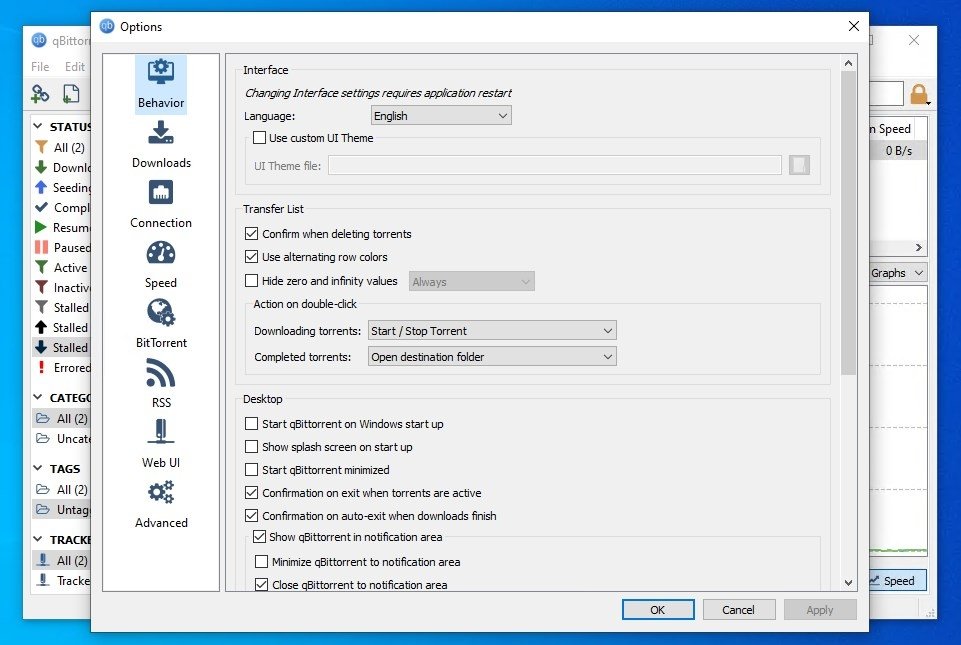
Here's what the qBittorrent interface looks like:
Mac/OSX: Using Transmission
Transmission is a simple, native macOS torrent client that's free and minimalistic, making it ideal for beginners. It handles private torrents efficiently with low resource usage.
Download and Install:
Visit the official site (transmissionbt.com) and download the macOS .dmg file (e.g., Transmission-4.x.dmg).
Open the .dmg, drag the Transmission app to your Applications folder, and launch it from there.
Initial Setup:
On first run, it may ask for permissions—grant access to Downloads folder.
Go to Transmission > Preferences > Network, and set a port (e.g., 51413). Enable "Automatically map port" for UPnP.
If using a VPN, configure Transmission to only work through it: In Preferences > Privacy, enable "Blocklist" for extra safety, and manually bind via system VPN settings if needed.
Adding a Private Torrent:
Get your .torrent file from the private tracker.
Drag the .torrent file into the Transmission window.
Choose your save location, select files if needed, and click Open. The download will begin.
View status in the main list. For private torrents, keep seeding to build your ratio, use the Inspector (right-click torrent) to check stats.
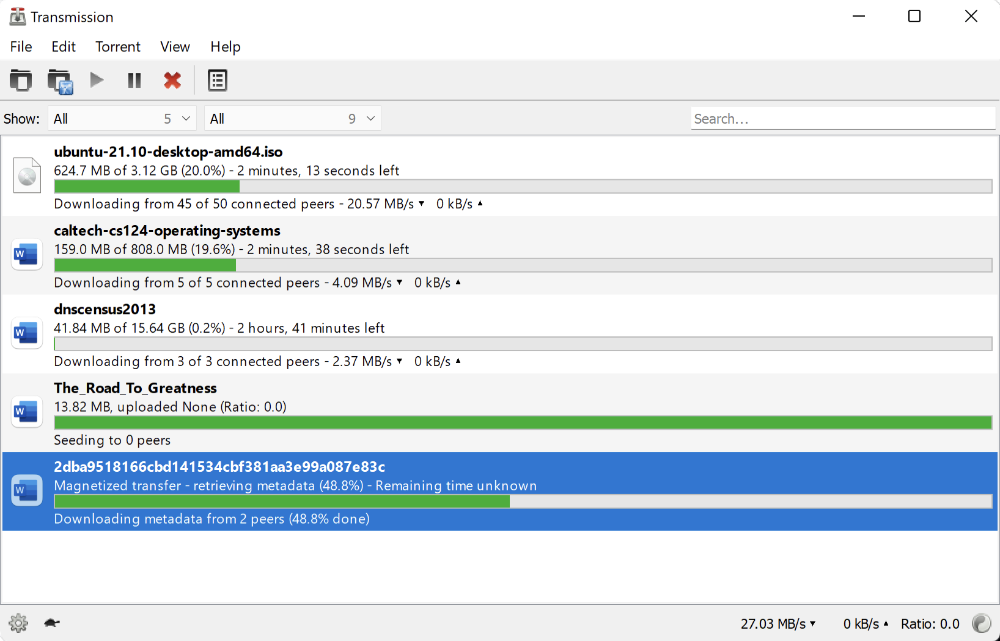
Here's a view of the Transmission interface:
Android: Using µTorrent (uTorrent)
µTorrent is a popular, free Android app for torrenting on mobile. It's feature-rich but includes ads (pro version removes them). It supports private torrents, though mobile data usage can rack up quickly, use Wi-Fi.
Download and Install:
Open the Google Play Store on your Android device and search for "µTorrent" (official app by BitTorrent, Inc.).
Install it (it's free, about 20-30MB). Launch the app and grant storage/network permissions.
Initial Setup:
On first launch, it may guide you through basics. Go to Settings (gear icon) > Network > Listening port, set a random port.
For privacy, enable "Use proxy" if your VPN supports it, or run the app through a system-wide VPN app.
In Settings > Power Management, enable "Wi-Fi only" to avoid data charges if you are on a limited plan.
Adding a Private Torrent:
Save your .torrent file to your device from the private tracker.
In µTorrent, tap the + icon > Add torrent from file (browse to .torrent).
Select download folder (e.g., /storage/emulated/0/Download), choose files, and tap Add. The torrent starts.
Monitor in the main list—swipe down to refresh. Seed back for private trackers by keeping the app running or using background mode.
Here's the µTorrent app interface on Android:

If you encounter issues, check the client's help section or forums. Remember, always prioritize safety and legality when torrenting.